Amazon Buy Box Monitoring for Vendors and Brands
Who holds the buy box on every ASIN you monitor, at what price, checked every day.
When a third-party seller takes the buy box on one of your ASINs, the product keeps selling, at the reseller's price and through the reseller's offer. For a vendor that means the sales that would have run through Amazon's own offer, and later through your purchase orders, go somewhere else. For a brand selling in Seller Central it means the sale goes to someone else's offer on your listing.
Vendor Central can tell some vendors how often they lost the featured offer. It doesn't say who took it, at what price, or since when. Those answers are on the Amazon.com detail page, and InsightLeap reads that page for every ASIN you monitor, every day, and keeps what it saw.
Who holds the buy box on my ASINs today?
Each daily check records the featured offer on the detail page: the seller's name and seller ID, the price, the availability message, and whether the offer is fulfilled by Amazon. From that, every monitored ASIN gets a status for the day:
- Won: your offer holds the buy box. For a vendor that is Amazon.com's offer; for a Seller Central account it is the offer under your seller ID.
- At risk: you hold the buy box, but the page shows a warning such as only a few units left in stock or a delayed ship date.
- Lost: another seller holds the buy box, or the page shows the product as unavailable.
- Suppressed: the detail page returns a 404.
- Unknown: the page could not be read, for example when Amazon serves a page for a delivery location it will not ship to. The check leaves these unscored instead of counting them as losses.
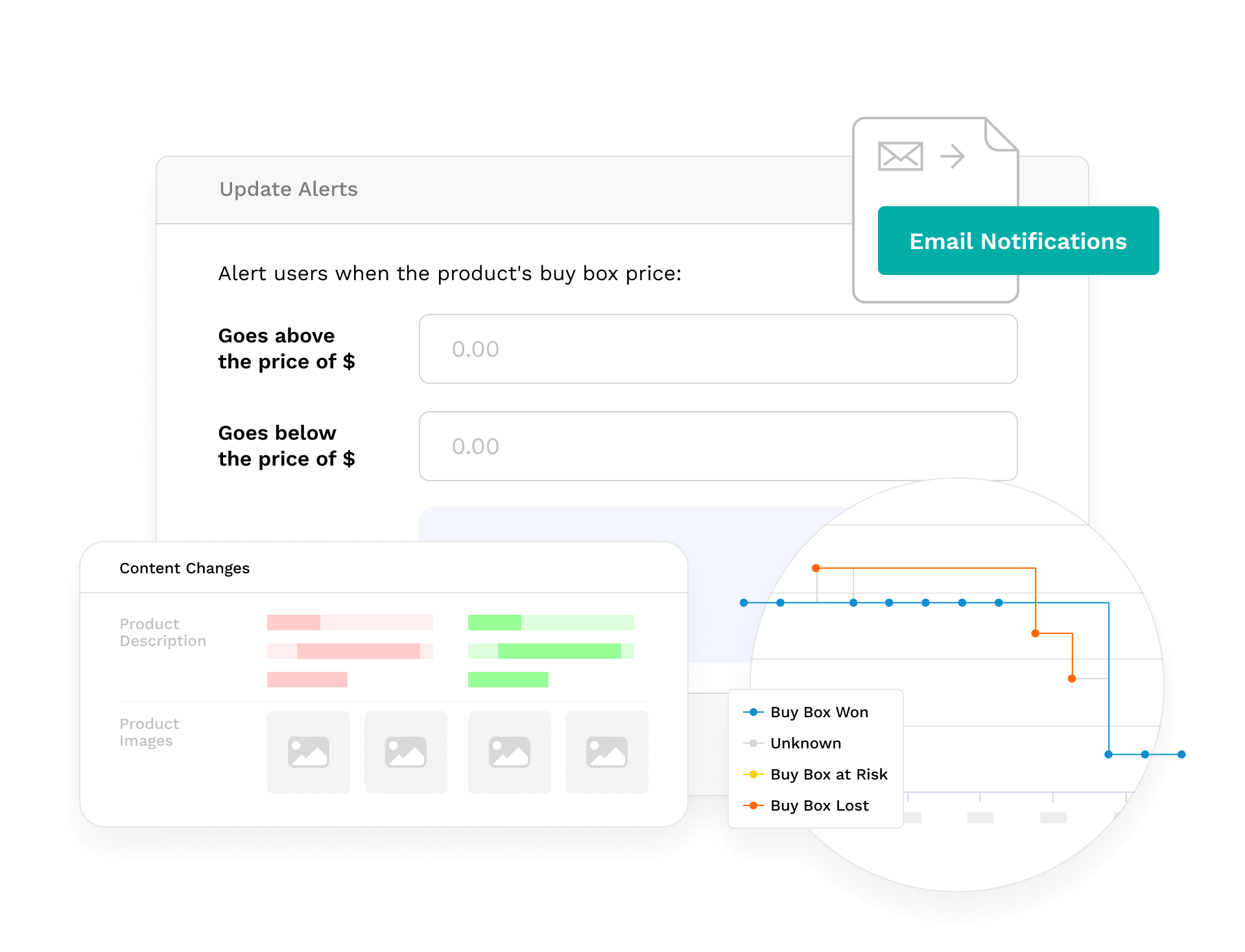
On each product's Buy Box tab, the daily rows sit in a table (status, seller, seller ID, buy box price, availability, Amazon's price, and the Fast Track message) under a price chart drawn against the minimum and maximum you set, so you can see how long a problem has been running and who is behind it.
Which third-party sellers are on my listings?
The daily check also records every other offer on the page: the seller, the price, Prime and FBA status, and the seller's rating. The Offers view lists them for any date range, split between Amazon and third-party offers.
In the weekly and monthly reports, the Amazon.com section turns those observations into figures you can track period over period:
- Buy box share: Amazon.com against third-party sellers for a vendor; your offer, Amazon, and third-party sellers for a Seller Central account.
- The number of third-party sellers offering your monitored ASINs.
- New third-party sellers: sellers seen this period who were not there the period before.
- How many of your ASINs had at least one third-party offer.
- In-stock rate: the share of checks where the page showed a buyable offer.
Our guide to finding third-party sellers on your ASINs covers what Amazon itself shows you, and where it stops.
Is anyone selling below MAP?
Set a minimum and a maximum price for any ASIN, one product at a time or in bulk on the Manage Products page. Every daily check compares the buy box price against that range, and the alert repeats each day until the price is back inside it, so a violation that lasts a week shows up on every day of that week.
A second alert covers discounting: it fires when the buy box price falls a set percentage or more below the list price on the detail page. The threshold can be set per product or as a default in your notification settings.
Each alert names the seller holding the buy box at that price, which is where a conversation about your MAP policy starts. If the buy box went to a lower price, the lost buy box due to price entry explains how Amazon reports that side of it.
What changed on the detail page?
Buy box problems often start with a listing change: a variation that broke apart, a title someone rewrote, an image that disappeared. The same daily check compares the detail page with the one before it and records changes to the title, bullets, description, images, variations, badges, A+ modules, and list price, each with the old and new value side by side. A page that starts returning a 404 is reported as suppressed on the same day.
The listing change alert post goes through which of those changes tend to cost sales.
How do the alerts reach the team?
Each user picks the alerts they want (lost buy boxes, buy box prices outside your range, discounts past the threshold, content changes, and missing pages) and gets one email after each daily check, covering every account they follow. A day with nothing to report sends nothing.
Teams that work in Slack can have the same update posted there: one message per check, with each account's counts of lost buy boxes, missing products, content changes, and price alerts, each linked to the detail. Slack delivery is switched on per agency, on request.
Greg Bonsib, VP of Marketing at General Tools, called daily buy box monitoring the single most important part of running their Amazon business, across a catalog of nearly a thousand products. The full account of what changed for that team is in the General Tools case study.
Questions teams ask first
How often does InsightLeap check the buy box?
Once a day, for every ASIN you monitor. Each check is kept, so the buy box history for an ASIN starts on the day you begin monitoring it and grows from there.
Doesn't Vendor Central already report the buy box?
Vendor Central can show some vendors how often their ASINs lost the featured offer, but it does not say which seller took it or at what price. That information is on the Amazon.com detail page, which is the page InsightLeap checks.
Does it work for Seller Central accounts?
Yes. For a Seller Central account the daily check matches the featured offer against your own seller ID, and the reports split buy box share three ways: your offer, Amazon, and third-party sellers. For a vendor the offer that should win is Amazon.com's, so the split is Amazon.com against third-party sellers.
What triggers a price alert?
Two things. A buy box price below the minimum or above the maximum you set for an ASIN, which alerts on every daily check until the price is back in range. And a buy box price a set percentage or more below the list price, using a threshold you set per product or as a default in your notification settings.
See it on your own catalog
Buy box monitoring is easiest to judge on your own ASINs. Request access and we'll start checking your products. For the reporting side, the Amazon vendor analytics page covers what InsightLeap does with your Vendor Central data, and the full feature list covers the rest.